Loree End User Manual
Welcome to the world of Loree
Your go-to resource for mastering the Loree editor and its powerful features. Explore the sections below to quickly navigate to the specific guides you need.
Understanding Course Navigation in Loree
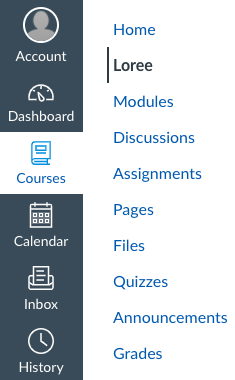
- You’re all set! The powerful Loree content editor is now available directly in your Canvas course navigation. Once Loree has been successfully configured, it becomes accessible across all your Canvas courses.
- Simply look for Loree in the left-hand navigation menu and click on it to open the tool and start creating content. Refer to the image:
Enable Cookies

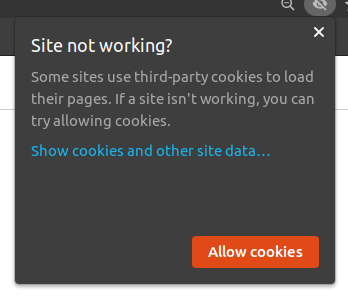
- To access Loree within the Canvas LMS, you need to allow cookies in your browser. Cookies are required to launch the Loree LTI successfully.
- If cookies are disabled, Loree will not open inside Canvas.
OAuth Verification
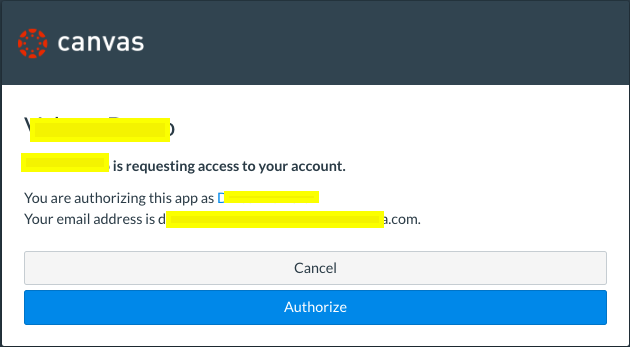
- To use Loree as an external tool within Canvas, you’ll need to accept the Canvas authorization request.
- This authorization allows you to securely access Loree and other Canvas-integrated external applications without any issues.
Landing Page
- Get started with the Loree editor! Learn how to navigate the landing page and set the foundation for your projects.
- Please visit our Loree Landing Page for more information.
Editor Page
- Get a comprehensive overview of the Loree Editor—including its toolbars, icons, and key features—so you can create and edit content with confidence using the Editor Page link.
Understanding Course Navigation in Loree
|
Enable Cookies
|
OAuth Verification
|
Landing Page
- Get started with the Loree editor! Learn how to navigate the landing page and set the foundation for your projects.
- Please visit our Loree Landing Page for more information.
Editor Page
- Get a comprehensive overview of the Loree Editor—including its toolbars, icons, and key features—so you can create and edit content with confidence using the Editor Page link.
Element Section
Dive into the Element Section, where you can access detailed guides for every component: 1. Getting Started 2. Layout Elements 3. Custom Elements 4. Interactive Elements 5. External Elements
Getting Started
The Getting Started section gives you quick access to essential content creation tools, making it easy to build rich and engaging course materials.
Available options include:
Text: Add and format written content.
Image: Upload or embed visual elements.
Video: Include videos to boost engagement.
Audio: Add sound or voice recordings.
Document: Attach files for reference or download.
Loree Interactives: Create interactive content for a more engaging learning experience.
This organized menu helps you effortlessly combine different media types to enhance your course or project.

Please visit our Getting Started page for more information.
Layout Elements
- Discover how to work with layout-specific elements of tables, dividers, and containers:
- Click the link to learn more about all the layout elements mentioned above.
Custom Elements
- Learn how to create and customize the elements of navigation, icons with text, source formats, and custom elements.
- Click the link to learn more about all the Custom Elements mentioned above.
Interactive Elements (For Existing Users)- Learn how to add a built-in interactive with H5p
- Click the link to learn more about Interactive Elements-H5P mentioned above.
External Elements
- Master the integration of external tools within the editor using our External Tools and and Embed URL options using the following page link: External Tools
Layout Elements
- Discover how to work with layout-specific elements of tables, dividers, and containers:
- Click the link to learn more about all the layout elements mentioned above.
Custom Elements
- Learn how to create and customize the elements of navigation, icons with text, source formats, and custom elements.
- Click the link to learn more about all the Custom Elements mentioned above.
Interactive Elements (For Existing Users)
- Learn how to add a built-in interactive with H5p
- Click the link to learn more about Interactive Elements-H5P mentioned above.
External Elements
- Master the integration of external tools within the editor using our External Tools and and Embed URL options using the following page link: External Tools
Custom Template
Explore Custom Templates here
- Refer to the following article to create stunning, reusable Custom Templates.
Custom Row
Explore Custom Rows here
- Refer to the Custom Rows page to customize rows and enhance your page designs like a pro.
Need Help?
If you have questions, suggestions, or need assistance, feel free to contact our support team at https://support.loree.io