Release Notes for Loree A2601.1
Published on: 20/01/2026
Feature Enhancements
New Interactive Checklist Feature in Loree
- We’re excited to introduce the new Checklist Interactive feature in the Loree Editor. This enhancement allows users to create simple, structured checklists within courses, helping learners track tasks and progress more clearly and effectively.
- To use it, simply open Loree Interactive, select Checklist, and click Create. You can add a title, header, and multiple checklist items with the help of the "+ Add checklist" button, then customize the appearance using options such as padding, colors, fonts, and checkbox styling from the left-hand panel.
- In the left navigation, the Checklist section allows you to customize the entire checklist container at once.
- If you want to customize the Header or Body individually, please use the corresponding Header or Body options available below in the left-hand menu.
- You can also enable the Strike-through option under Behavioural Settings, which visually marks checklist items as completed when learners check them off.
- Within the Body section, users can delete individual checklist items and reorder items using the up and down arrow controls.
- Once all updates are completed, click Create to create the checklist. Use Preview in the top-right corner to preview it, or click Cancel to discard the changes.
- After clicking Create, choose where to save the interactive.
- Click Create to proceed.
- The checklist will then be displayed, where you can click Edit to make changes or click Embed to add the checklist to your course.
- This feature helps you design organized, interactive, and learner-friendly content more effortlessly than ever before.
 Please refer to our knowledge base article, Checklist, to learn more.
See the example below to view this feature in action.
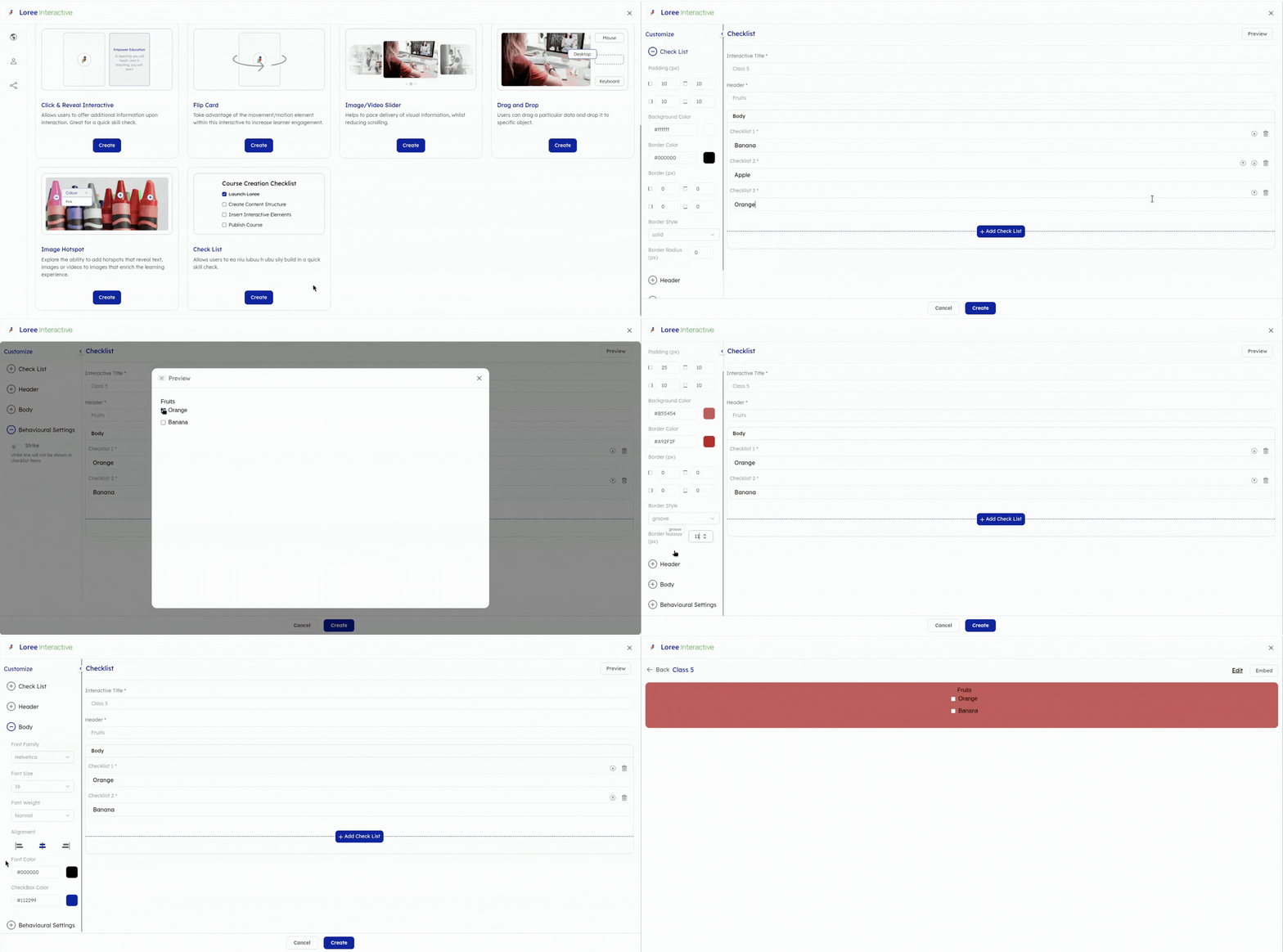
Table Border Behavior—Hide Border
- We’ve introduced a new Border Behavior option for tables with a Hide Border toggle.
- To use this, click the table icon in the table and open the Border Behavior section from the left-hand settings panel. Here, you’ll find the Border collapse and Hide Border toggle.
- When the Hide Border toggle is turned on, all visible borders of the table are hidden while the table structure and content remain unchanged. This makes it easy to design borderless tables that blend seamlessly with your course layout.
- If you turn the toggle off, the table borders will be displayed again instantly, allowing you to switch between bordered and borderless views at any time during editing.
- This enhancement helps you design visually clean, modern, and learner-friendly tables more effortlessly than ever before.
Border Collapse adds spacing between cells, and when both Border Collapse and Hide Border are enabled, the table shows no borders and no cell spacing.
Refer to the example below to see this feature in use.
THANK YOU!